
Choose the cleanup.
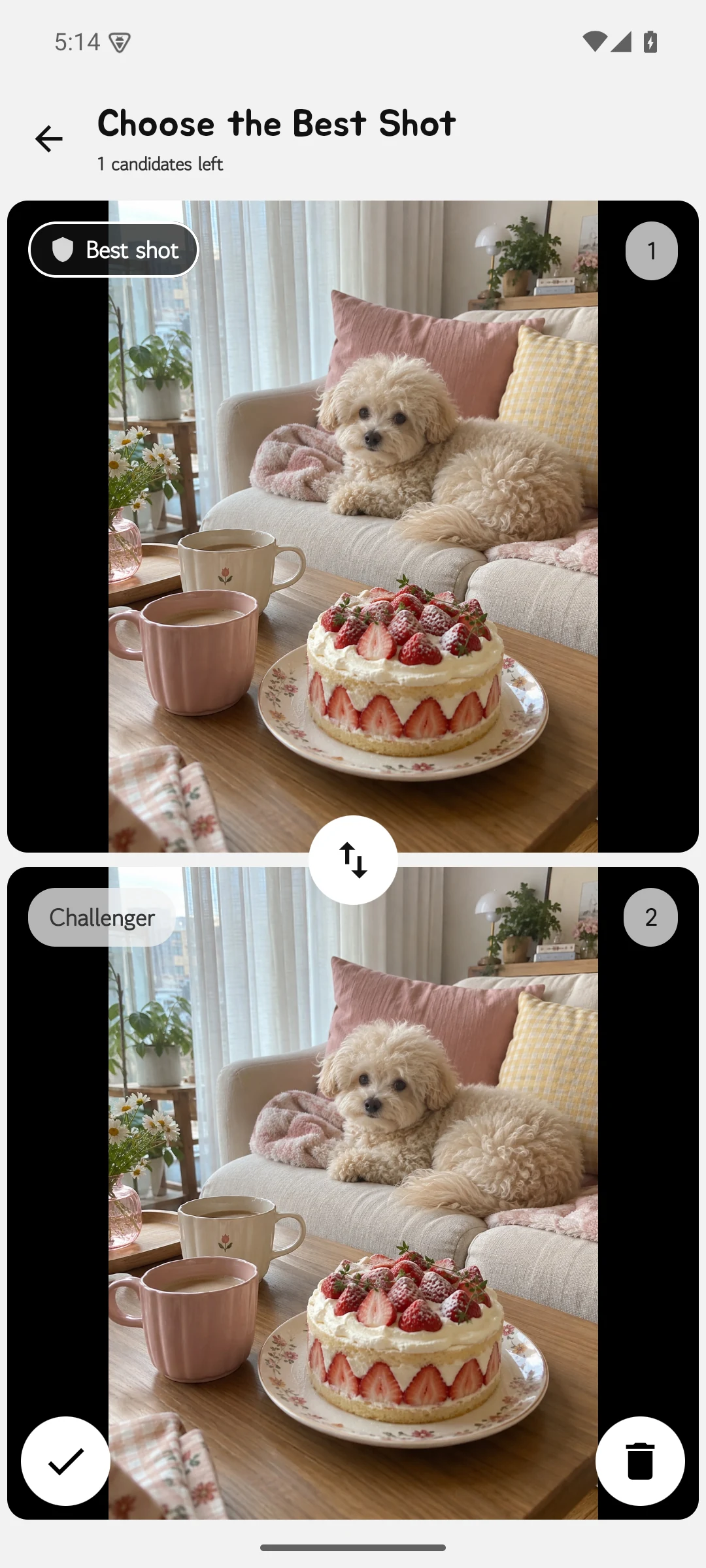
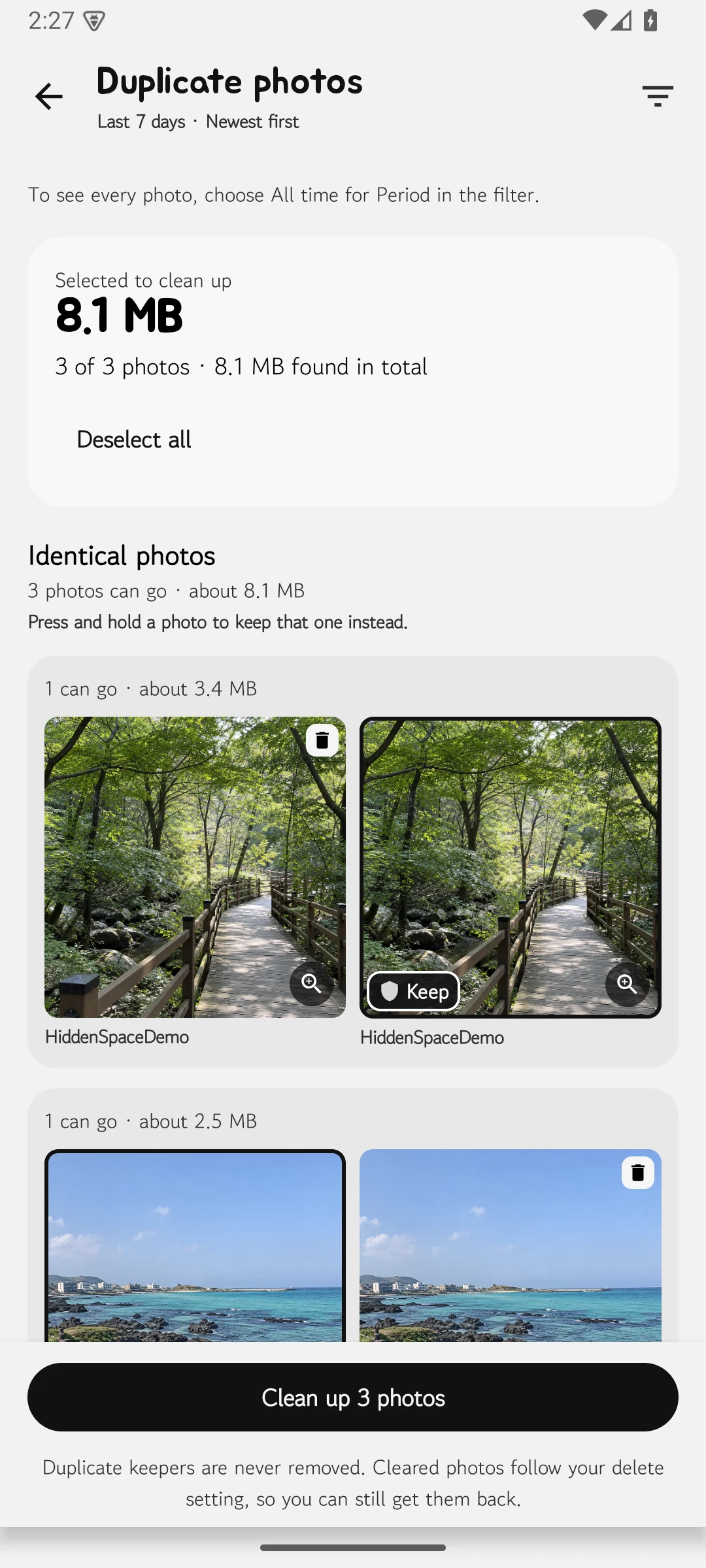
Start with photos and videos, screenshots, albums, best shots, or duplicate-photo groups.
SwiPik User Guide
Pick the cleanup you need, decide item by item, and check everything once more at the end. SwiPik keeps your choices visible throughout the flow.
Start with photos and videos, screenshots, albums, best shots, or duplicate-photo groups.
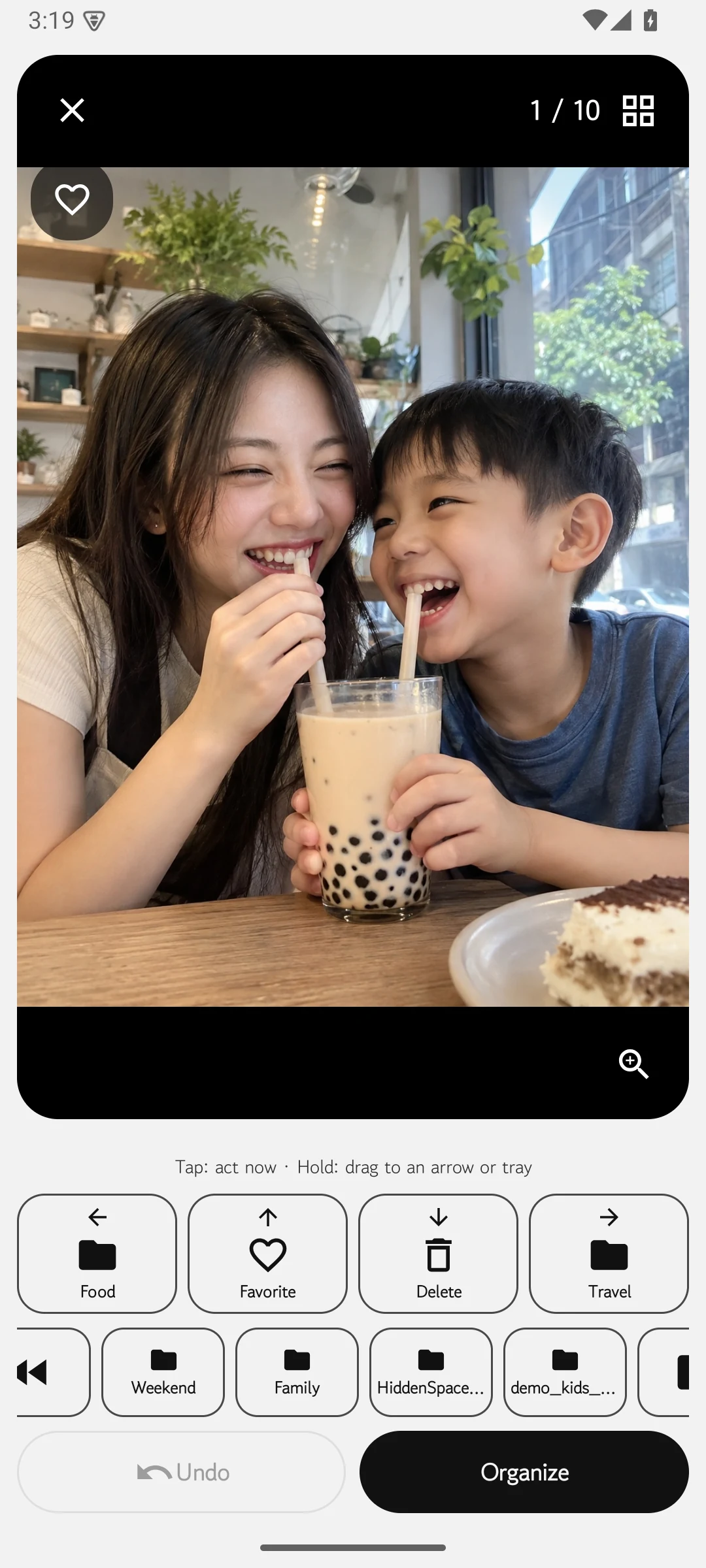
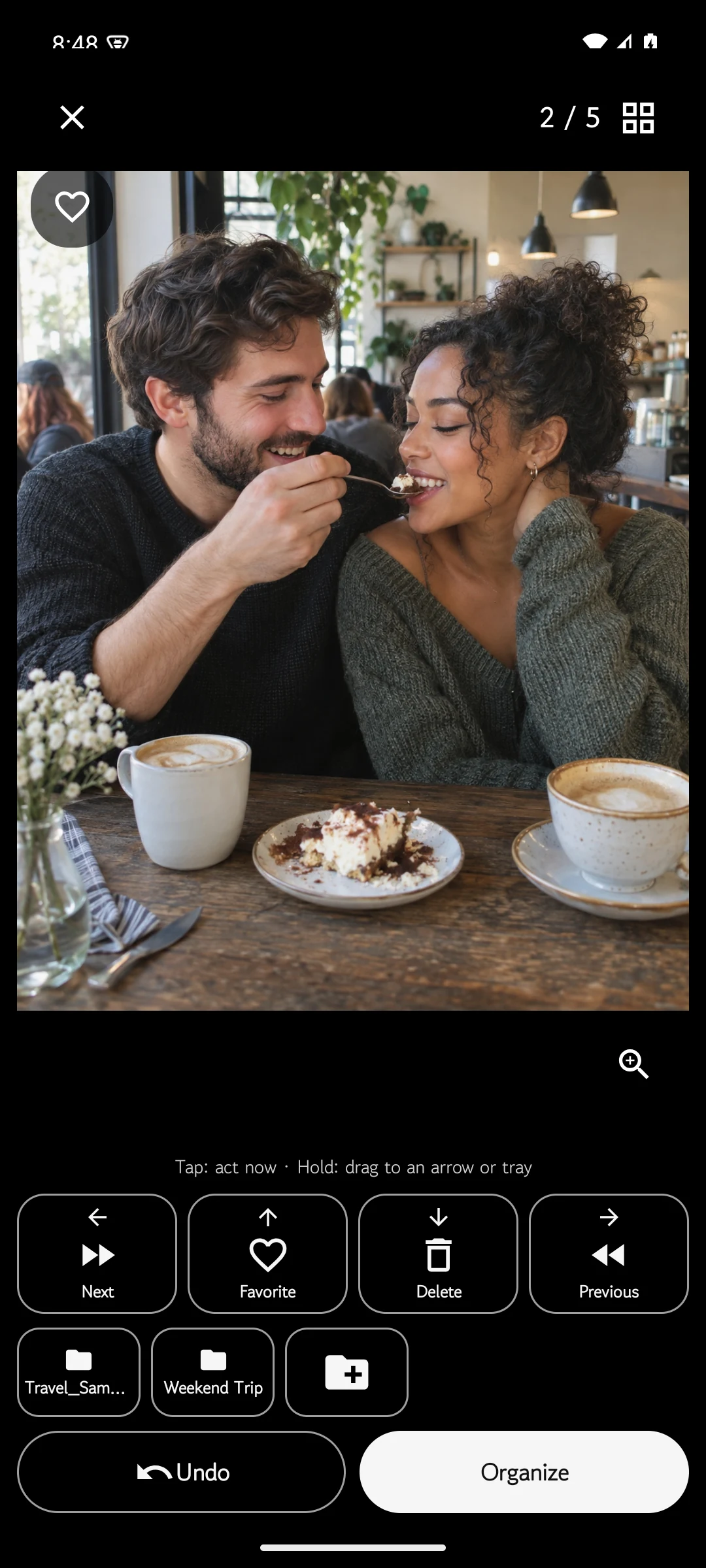
Use a swipe or on-screen button. In album cleanup, choose where selected items should go.
Check the final review. For deletion, complete Android’s system confirmation before changes are applied.
Choose the right flow
Every screen below comes from the public Android app.
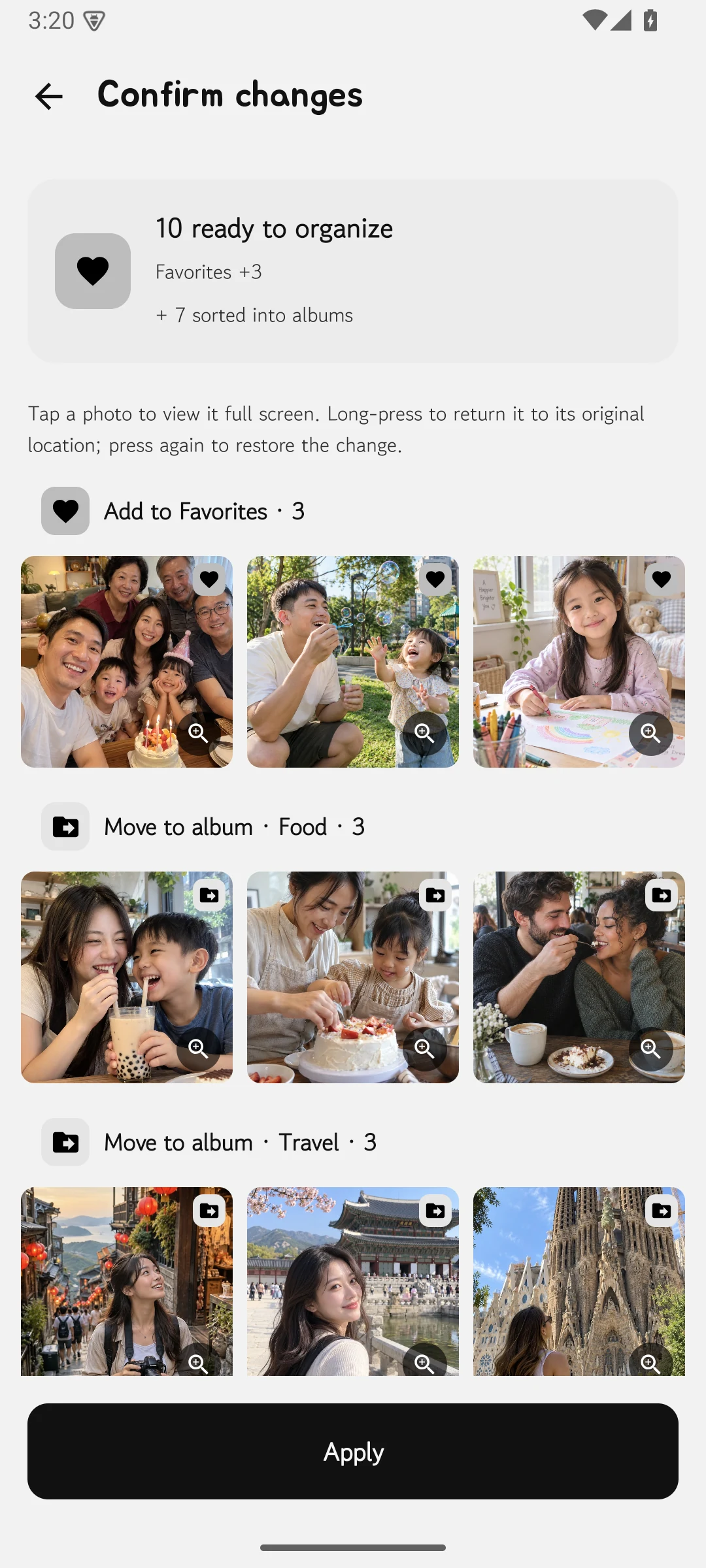
Before you apply
Review your choices in SwiPik, then complete Android’s system confirmation. If anything was selected by mistake, change it before applying.
The final apply step for Smart Cleanup is Premium. Check Google Play for the current price and purchase terms.