
NotiNutty user guide
New to NotiNutty?
Follow these steps in order.
The four in-app guide steps (Enable notification access → Start with what you can see → Read hidden updates here → Read and clear) shown with real screens. Jump to what you need.
Screens are from public version 1.2.53 on an emulator, with demo apps. Ads were turned off while capturing, so no ad banner appears; the free app shows an ad at the bottom.
01
Get started
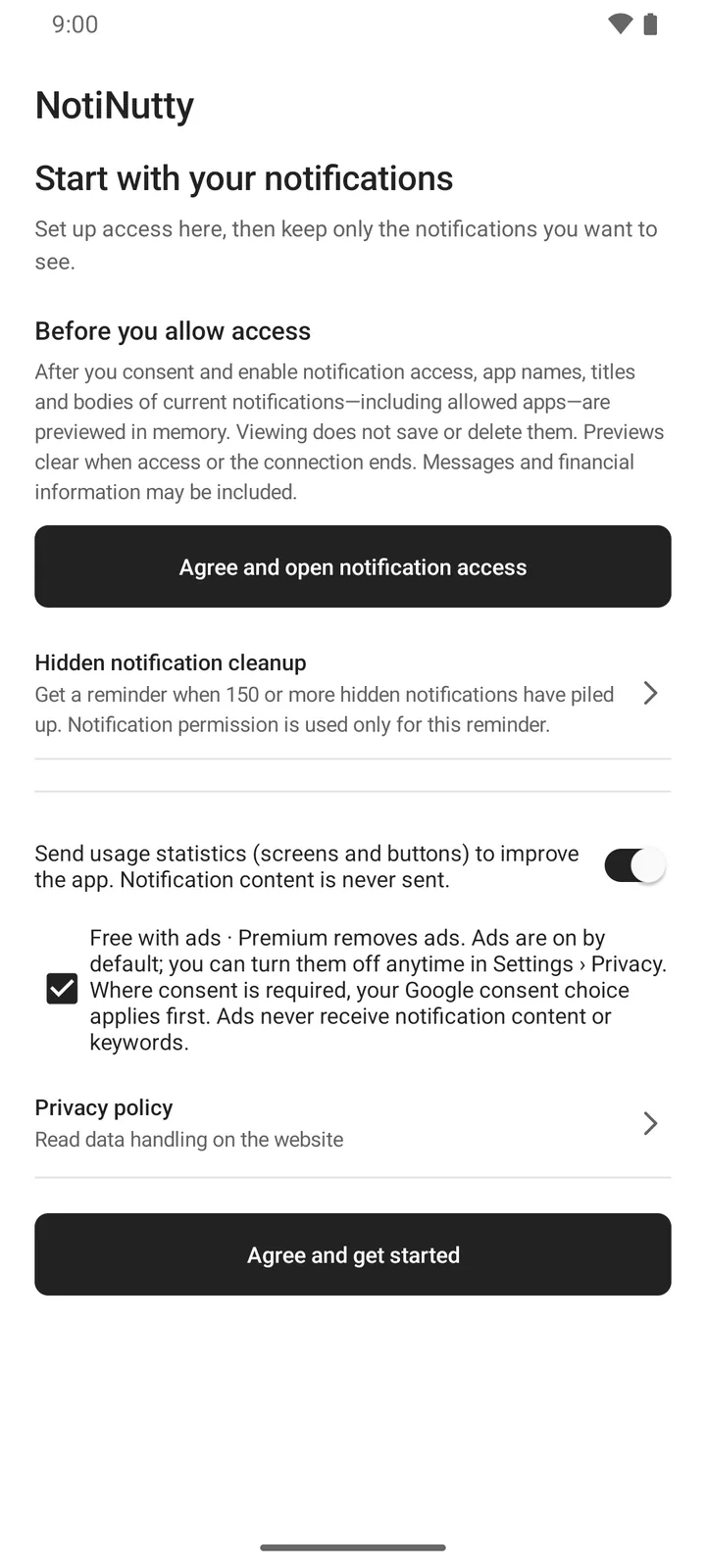
When you first open NotiNutty, it explains access and optional choices. Read it, then tap “Agree and open notification access”.
02 In-app guide 1
Enable notification access
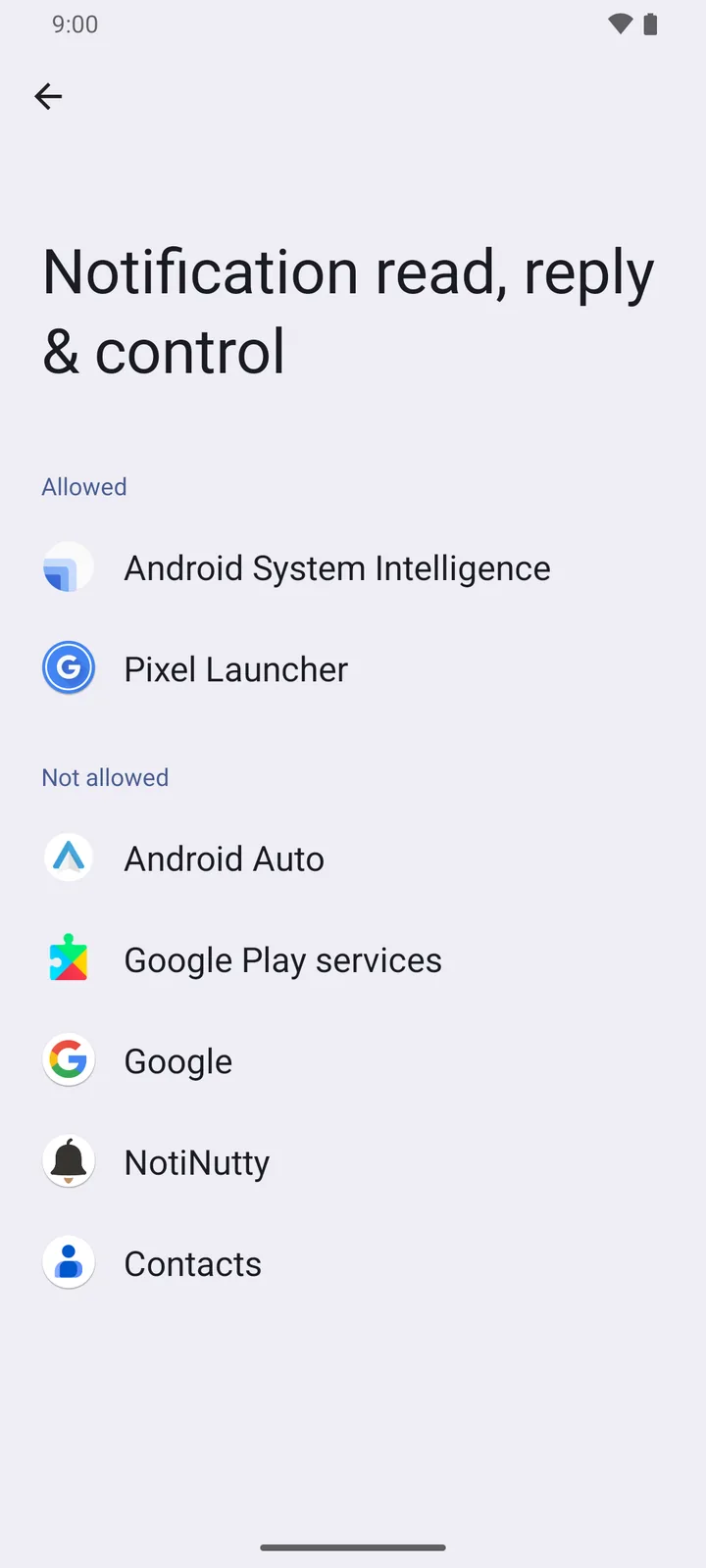
In Android’s notification access list, tap “NotiNutty”.
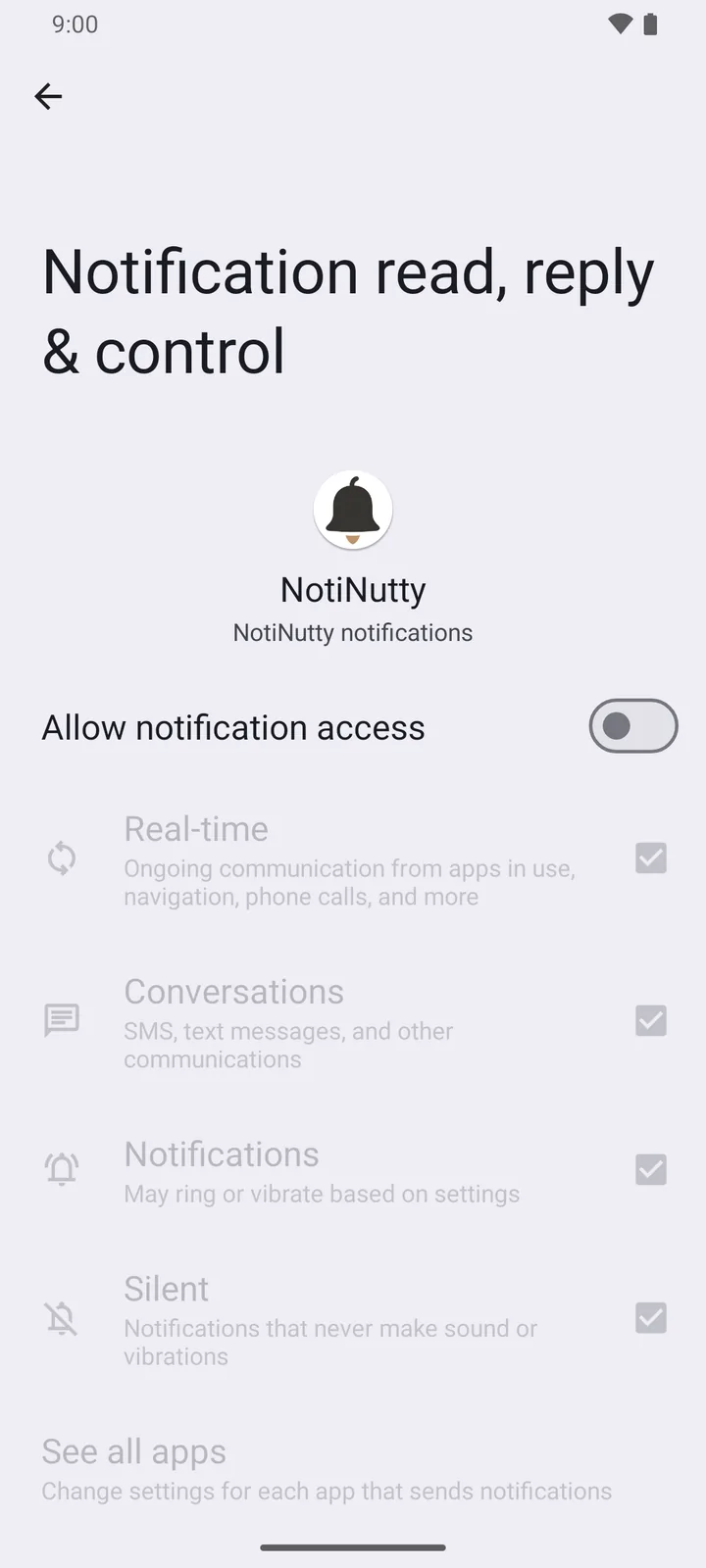
Turn on “Allow notification access”.
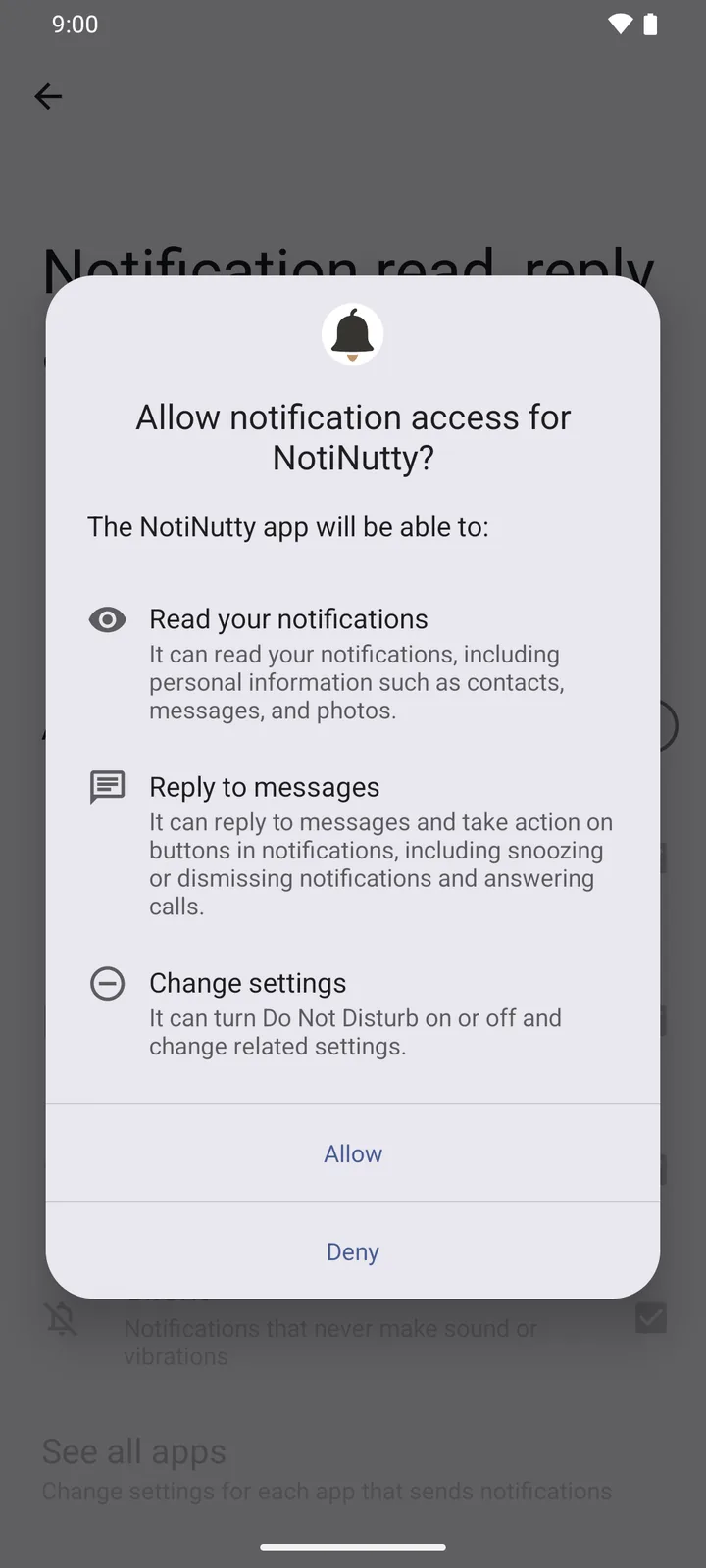
Tap “Allow” in the confirmation to let NotiNutty read notifications. It needs the app name, title and text to sort them.
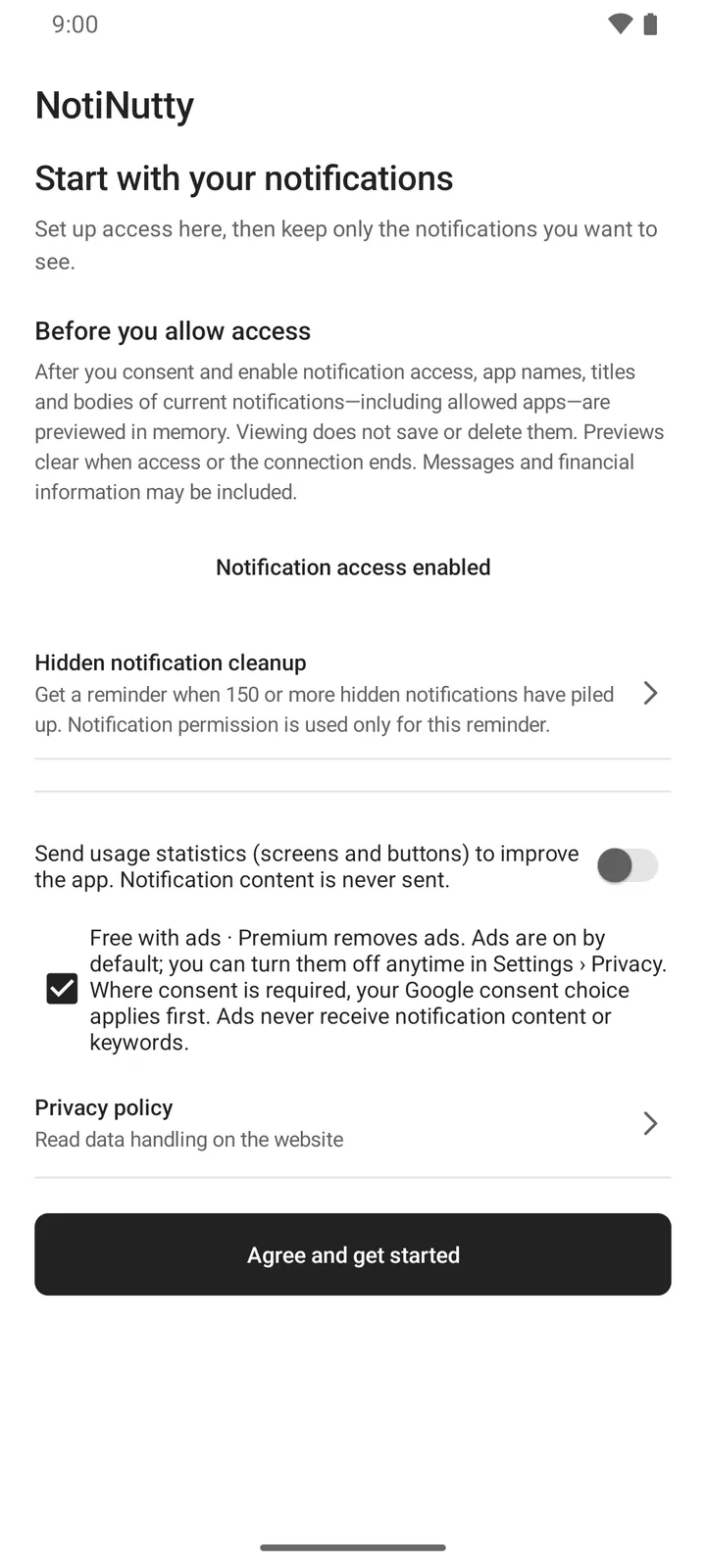
Back in the app you’ll see “Notification access enabled”. Tap “Agree and get started”.
03
Your notifications
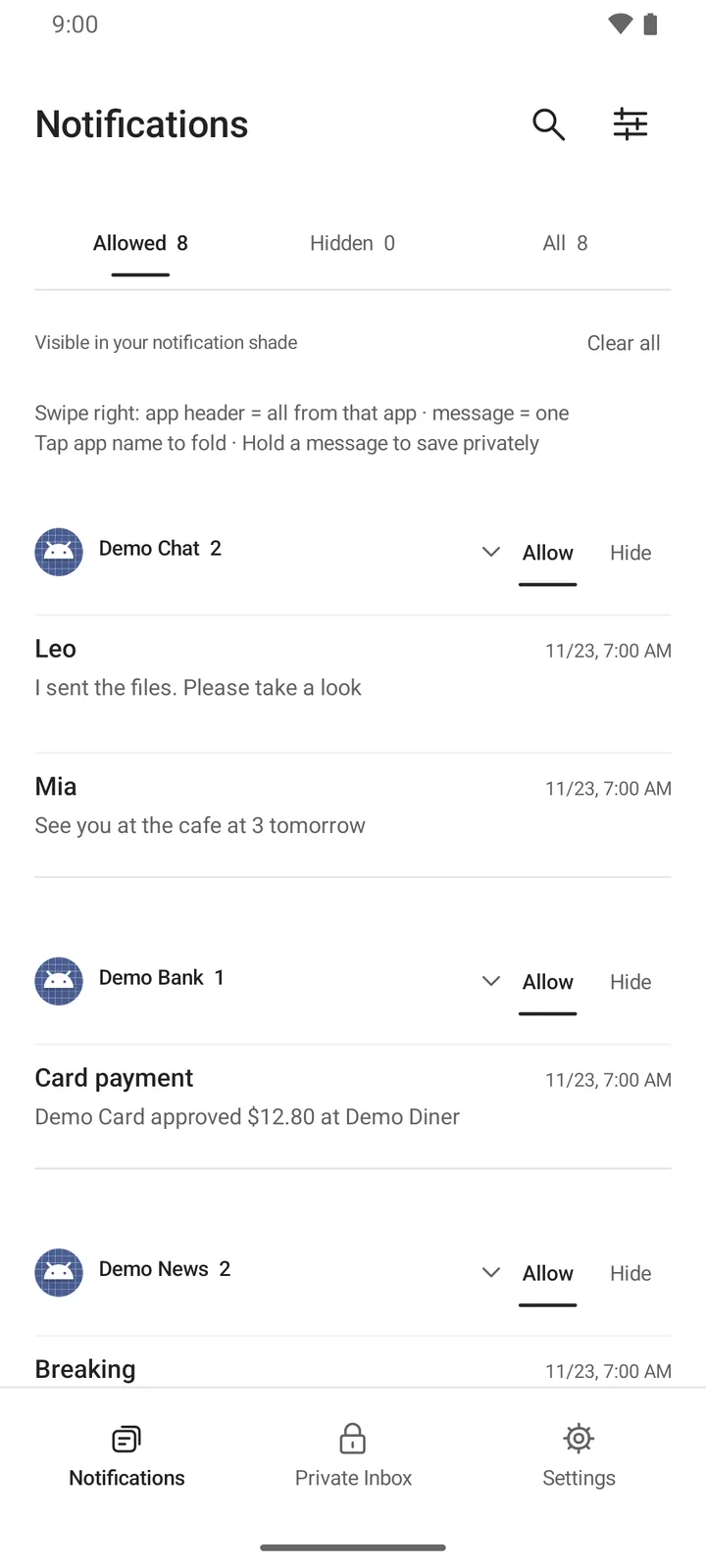
The Notifications tab groups current notifications by app. Switch between Allowed, Hidden and All.
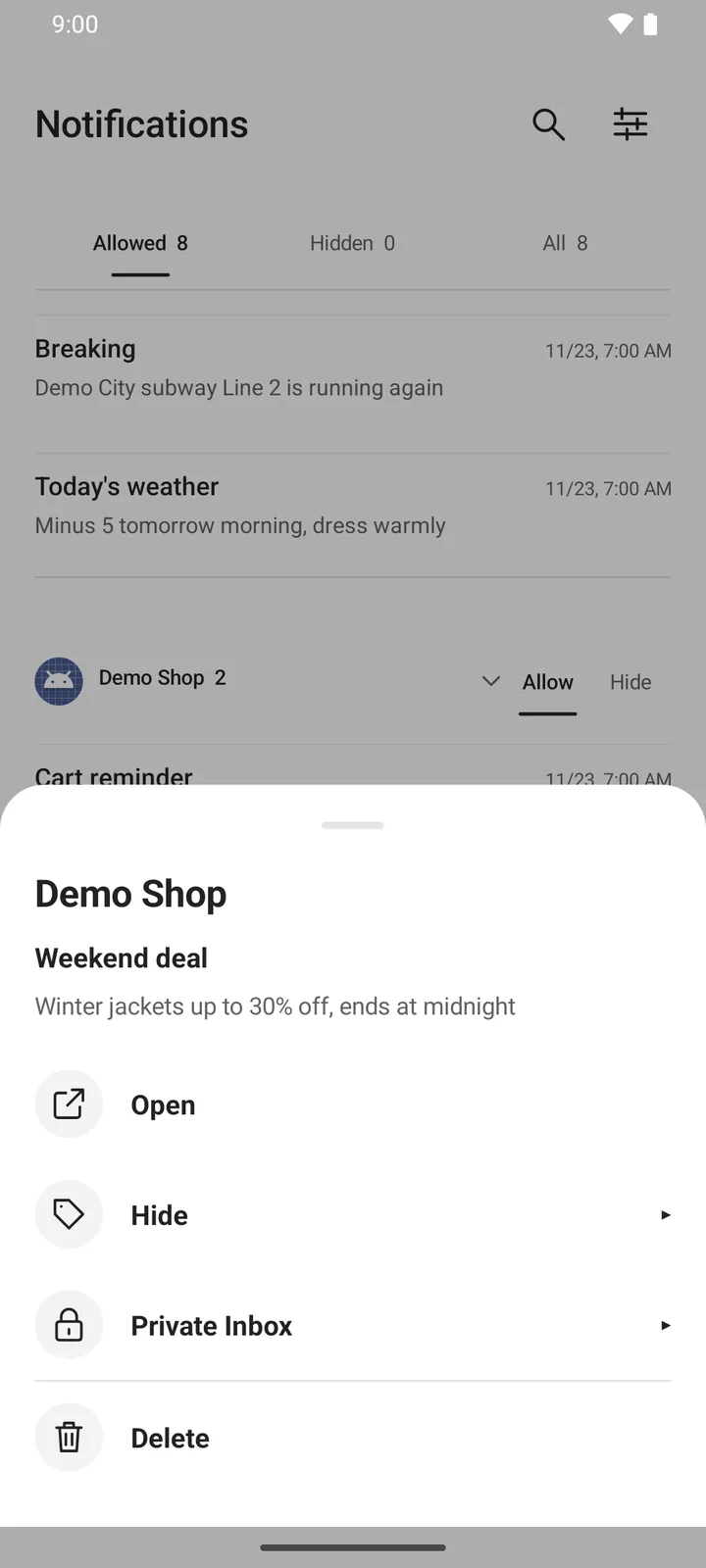
Tap a notification to see it and choose Open, Hide, Private Inbox or Delete.
04 In-app guide 2
Hide notifications
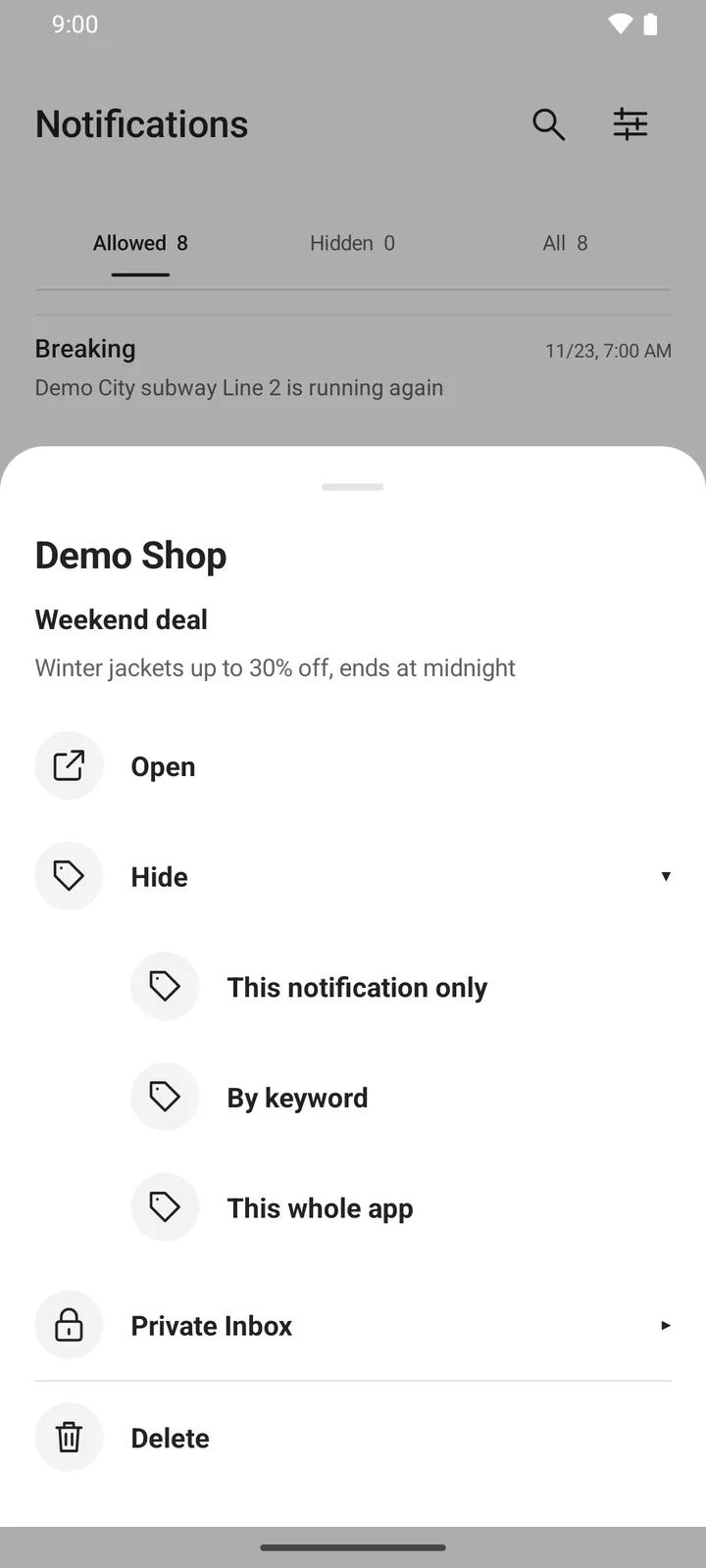
Start with what you can see. Expand Hide to choose This notification only, By keyword or This whole app.
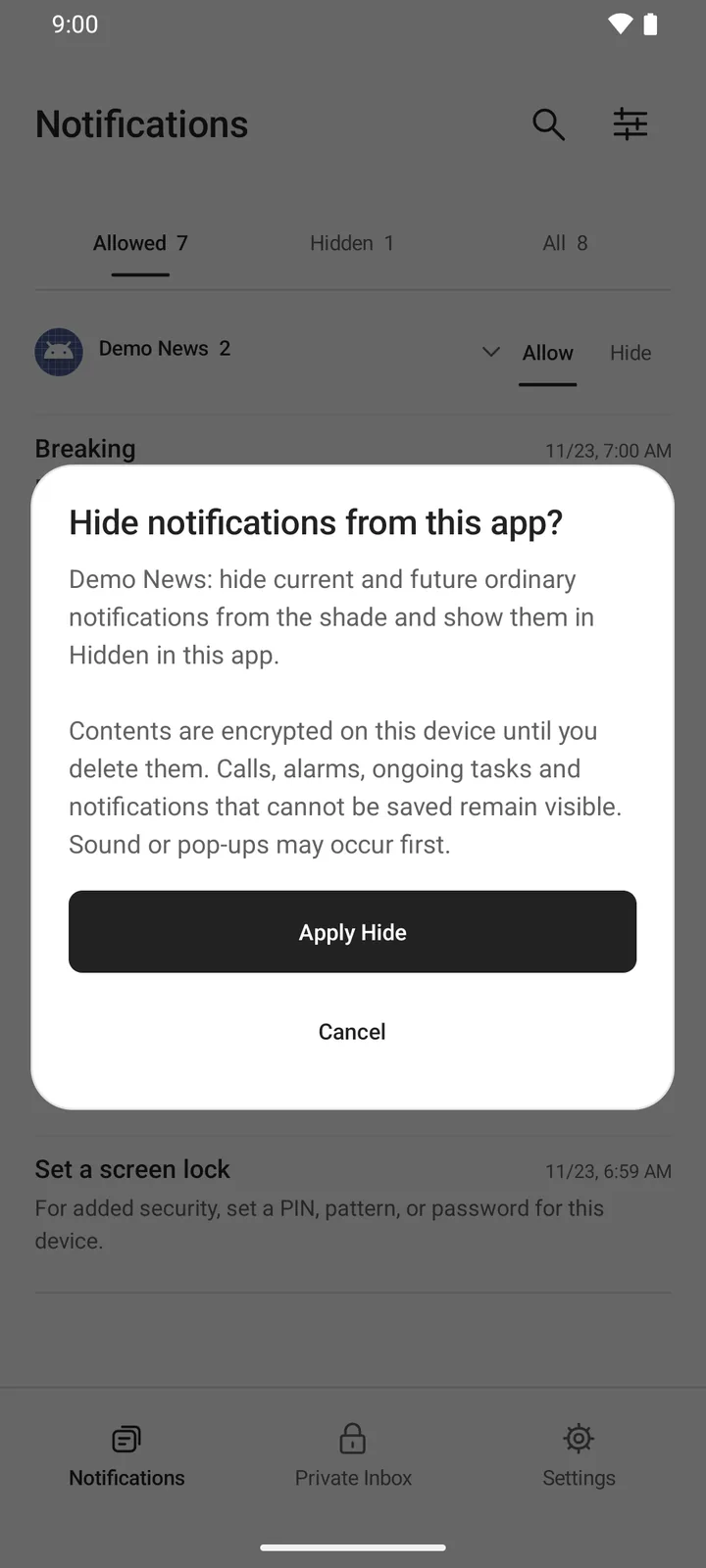
Tap Hide on an app header to hide that app’s current and future ordinary notifications.
05
Keywords
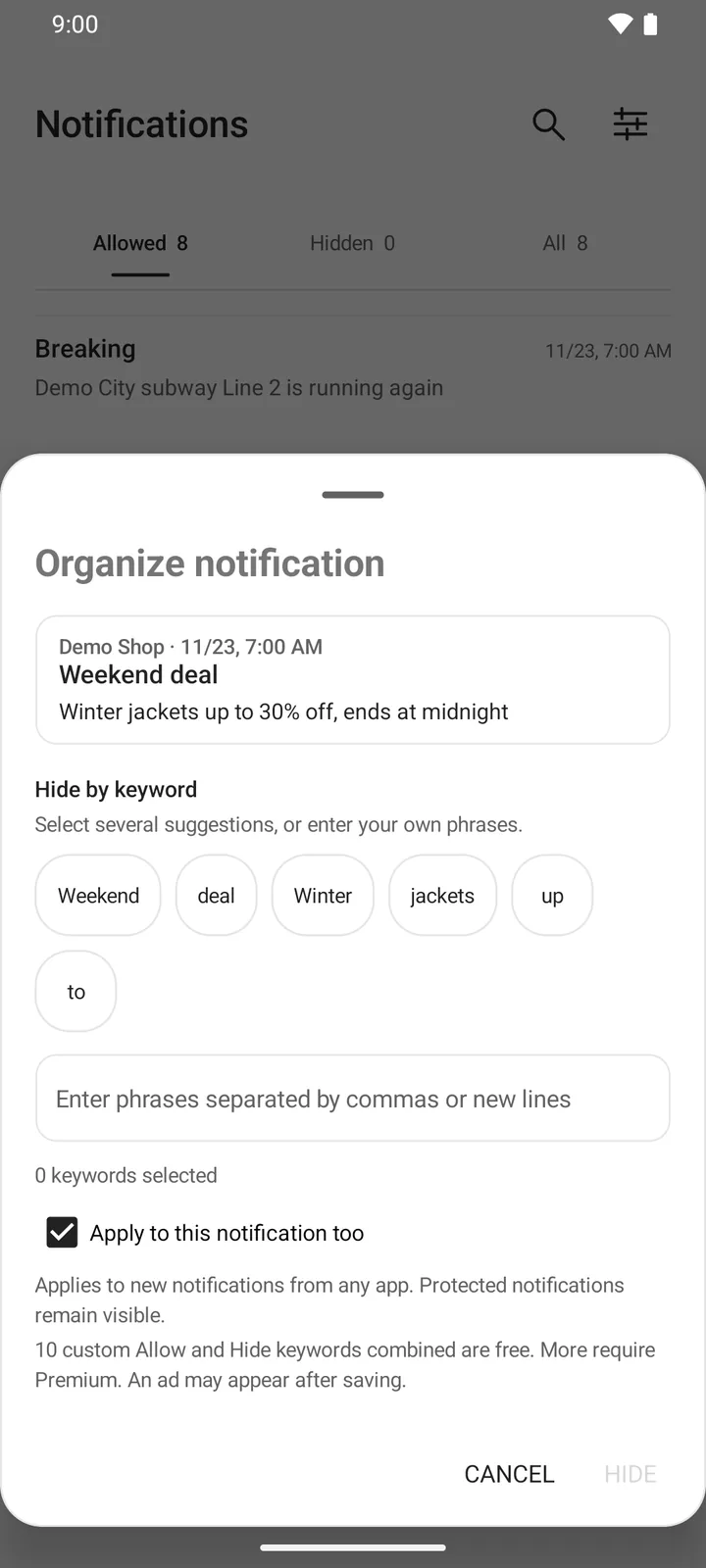
“By keyword” shows the message and its words, so you can pick keywords while reading it.
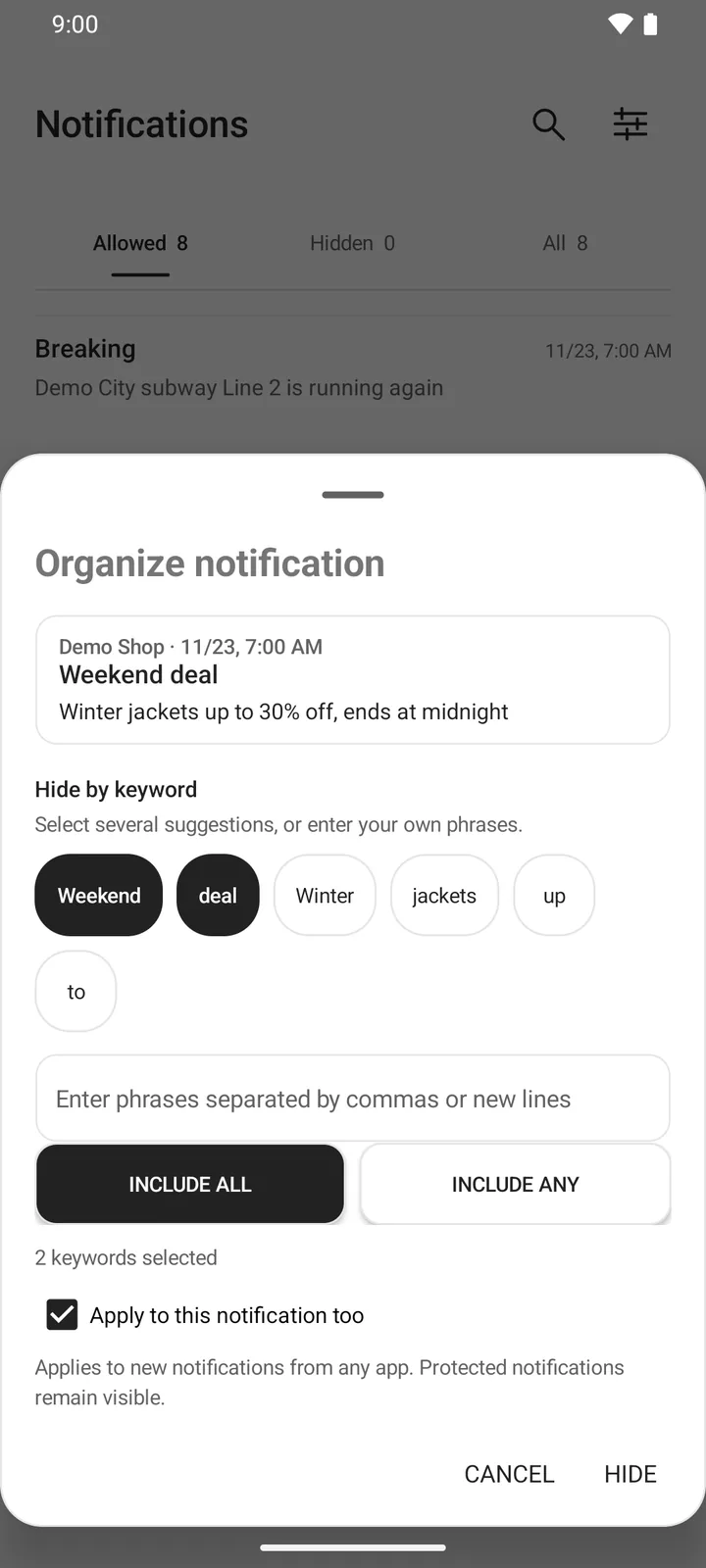
Pick one or more words, choose Include all or Include any, then tap Hide. Your own allow and hide keywords are free up to 10 in total.
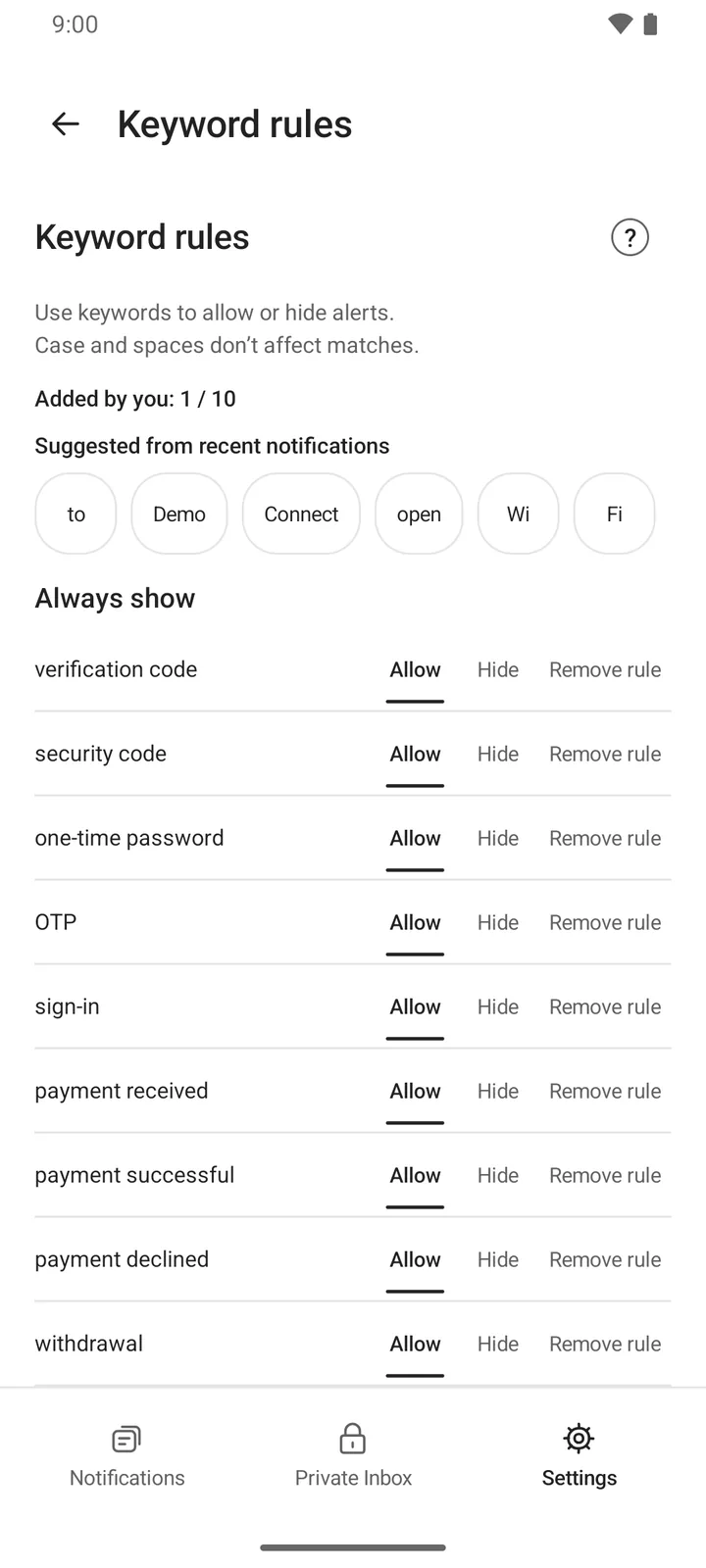
Use the rules button to add or remove keywords and manage Always show keywords like verification codes.
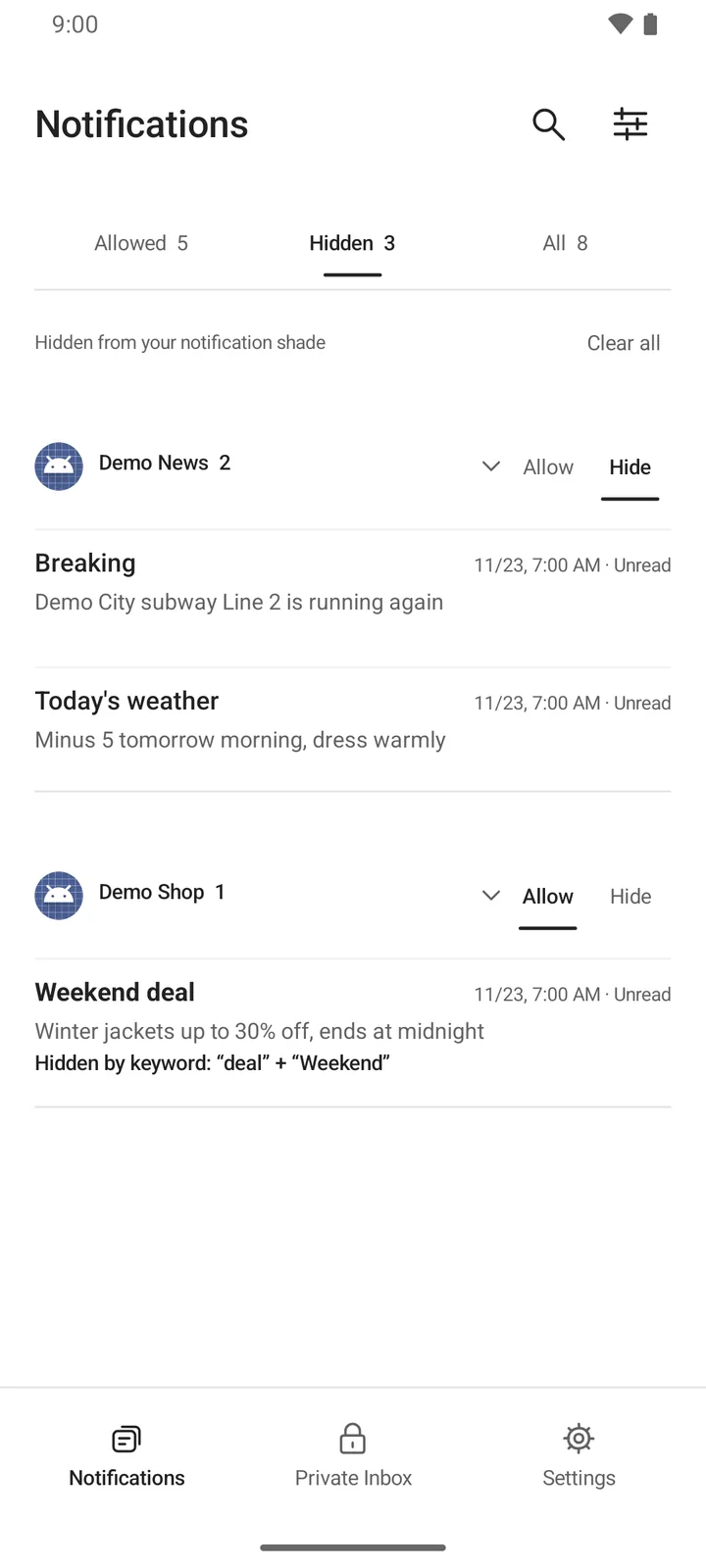
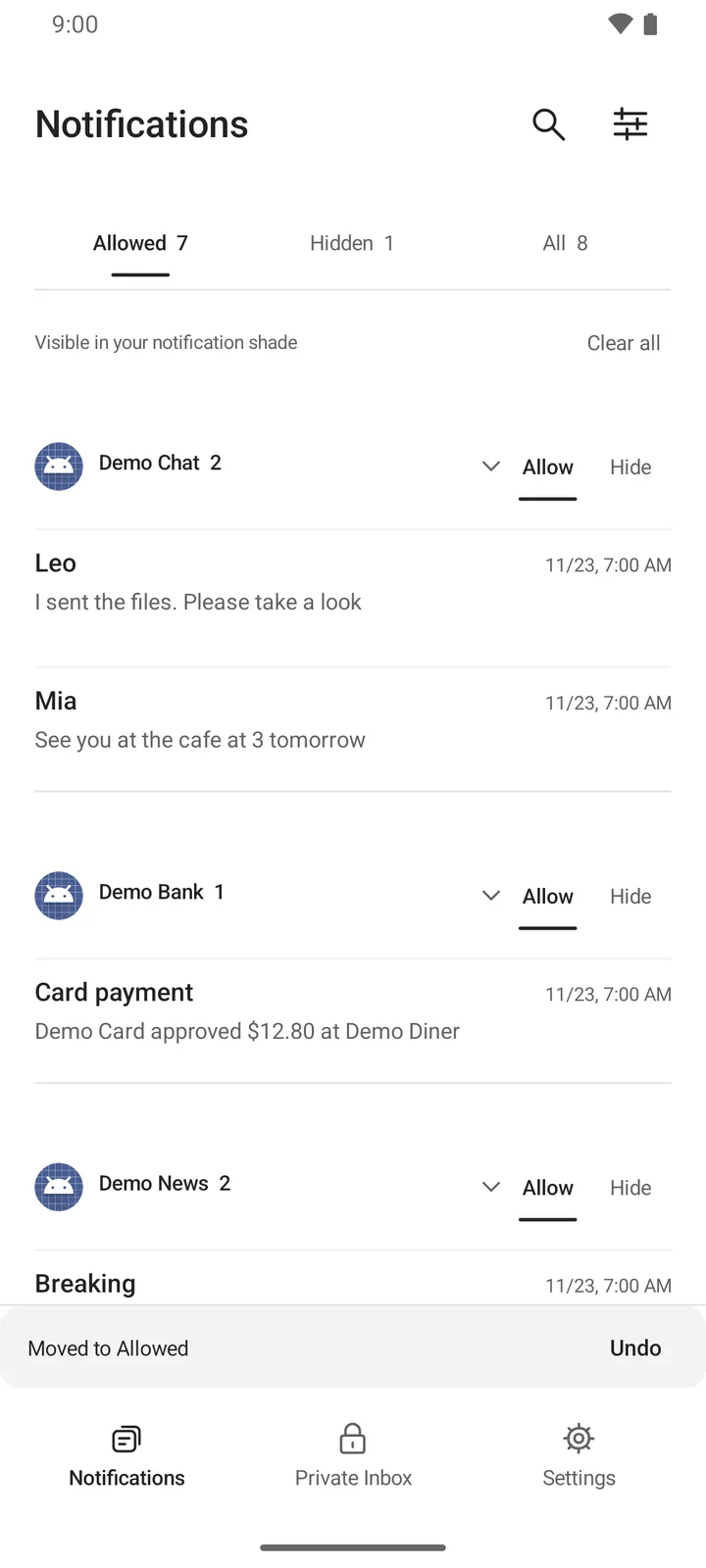
07 In-app guide 4
Read and clear
Delete read notifications one by one with Delete in the detail sheet, or all at once with Clear all in the list (see the screens above). Deleted records cannot be restored, and allowing an app again does not re-post them.
08
Notifications that stay visible
Calls, alarms, ongoing tasks, media playback, navigation and group summaries may stay in the shade because of how Android works.
09
Search
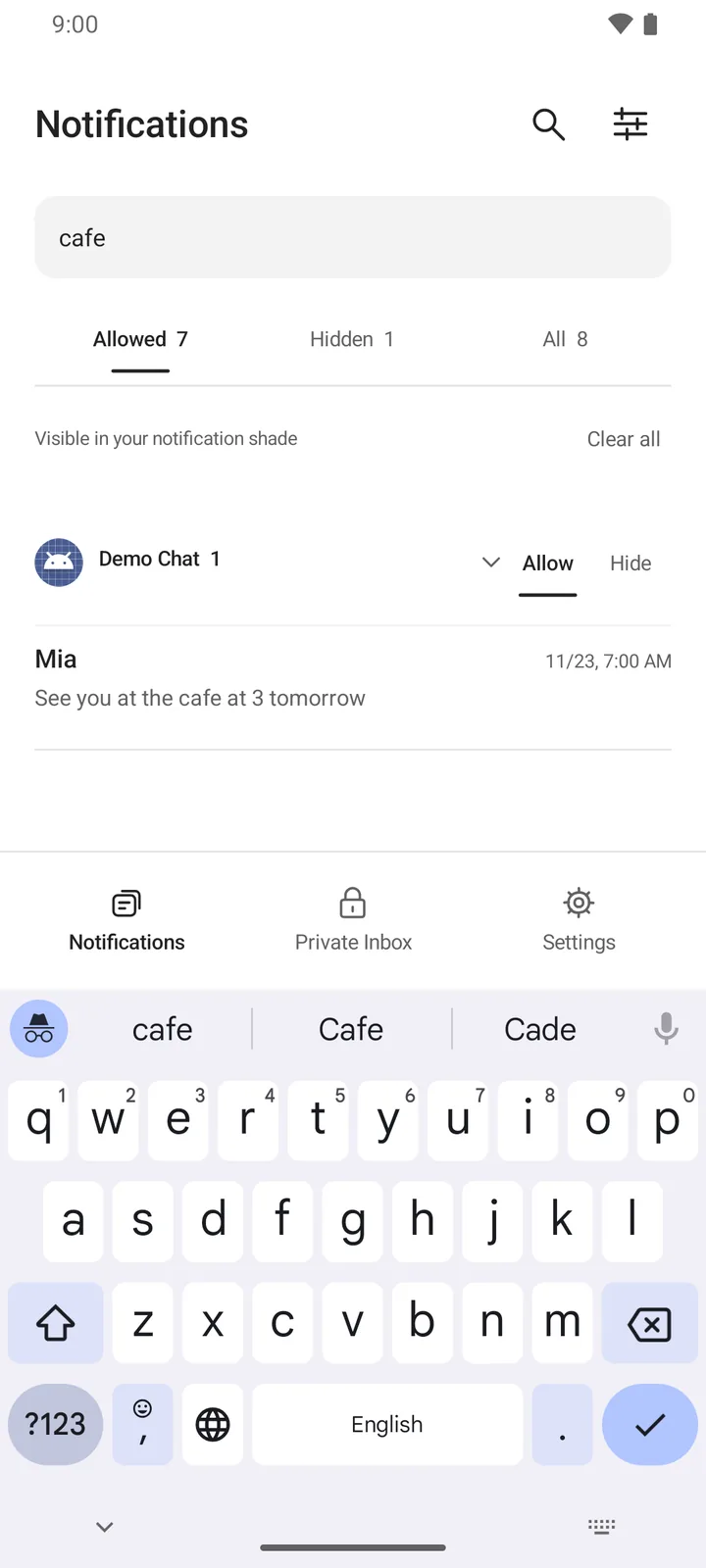
Tap search at the top; the box and keyboard open right away. Search by app, person or content.
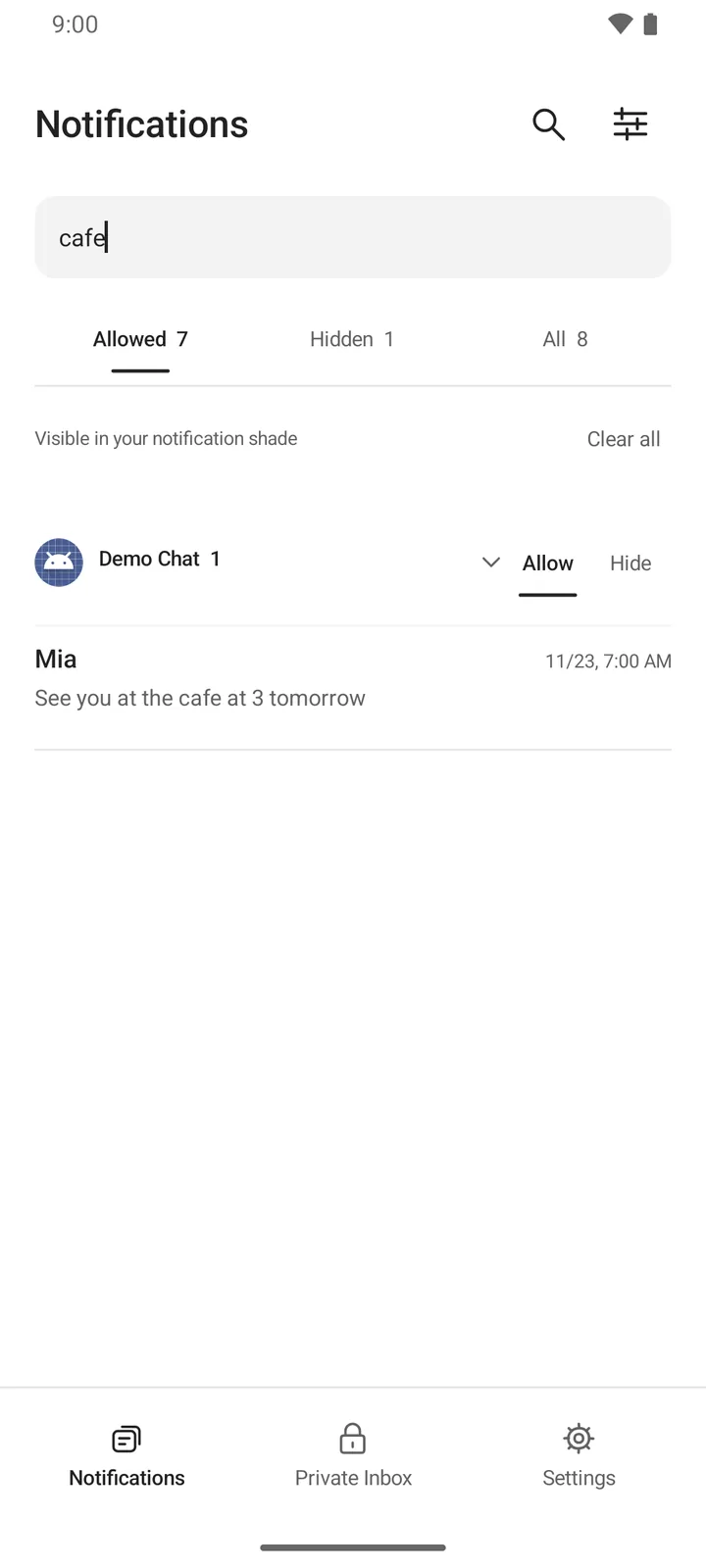
The list filters as you type, and each tab keeps its own search.
10
Private Inbox
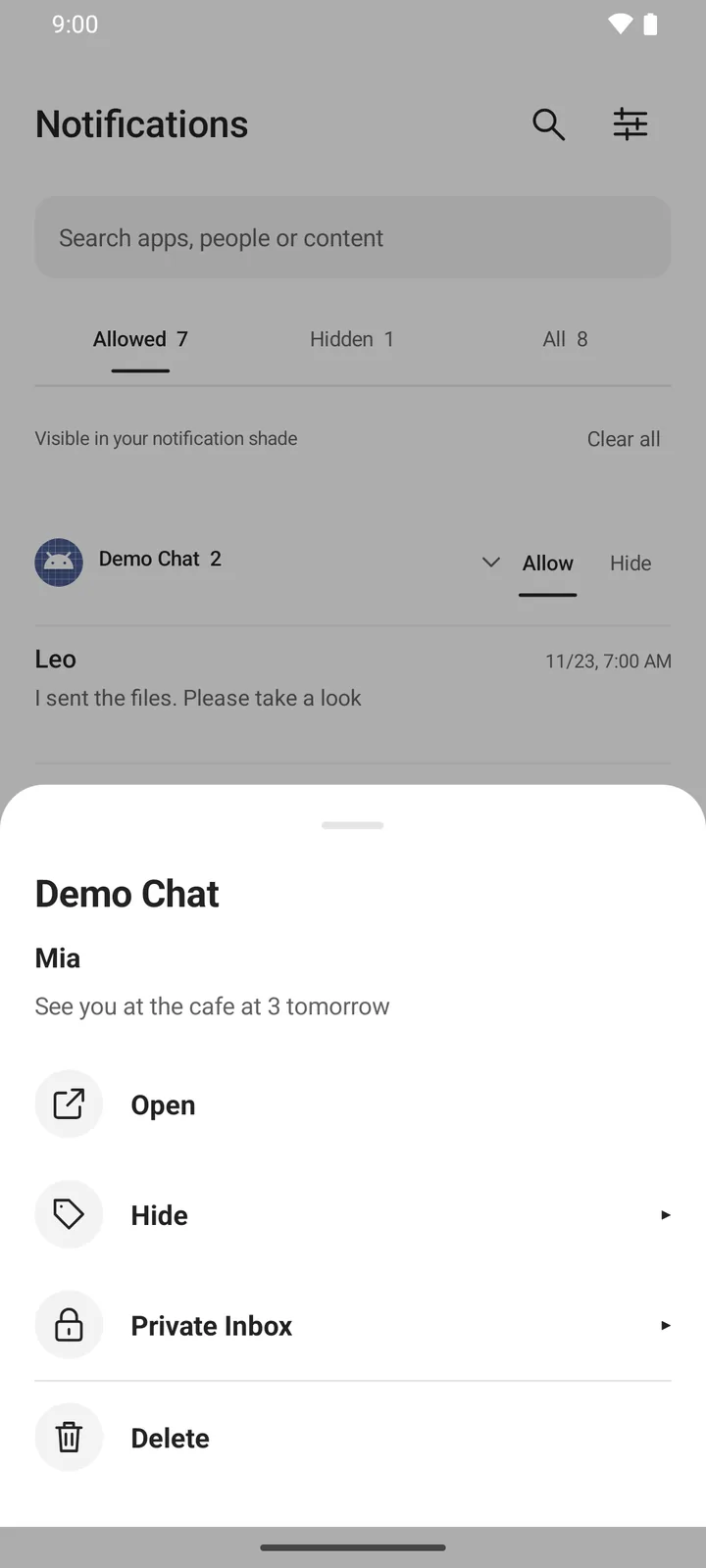
Long-press a message notification to move it to Private Inbox.
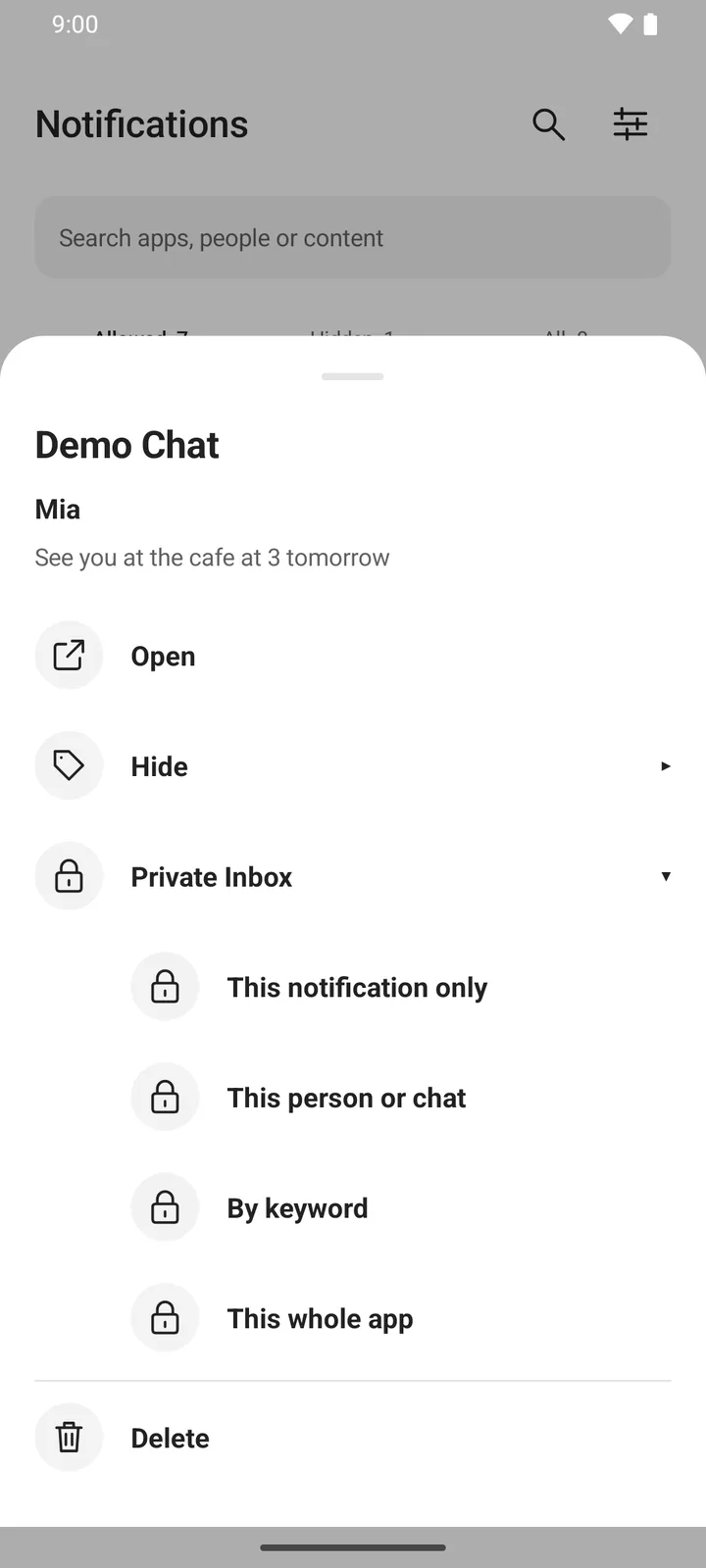
Choose This notification only, This person or chat, By keyword or This whole app.
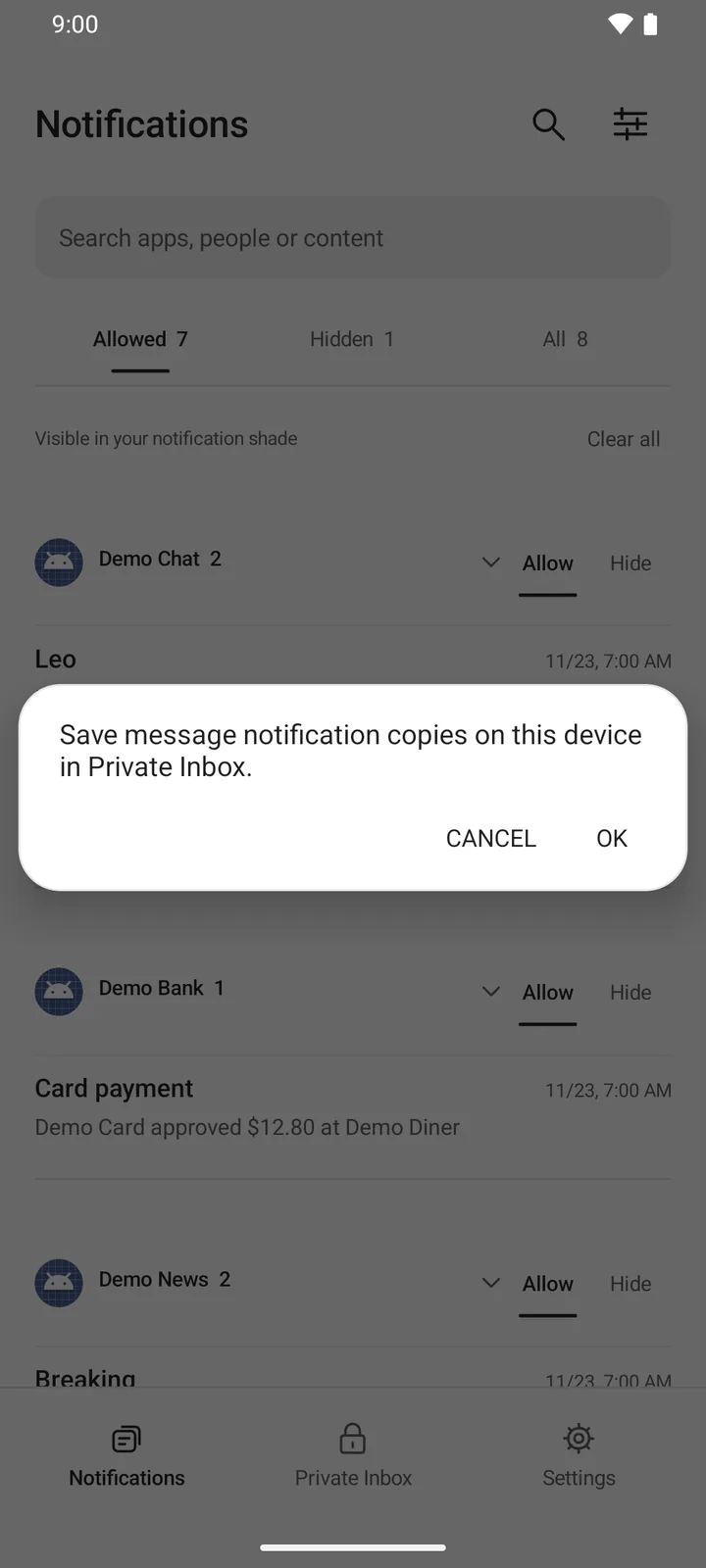
The first time, NotiNutty confirms it will save copies on this device.
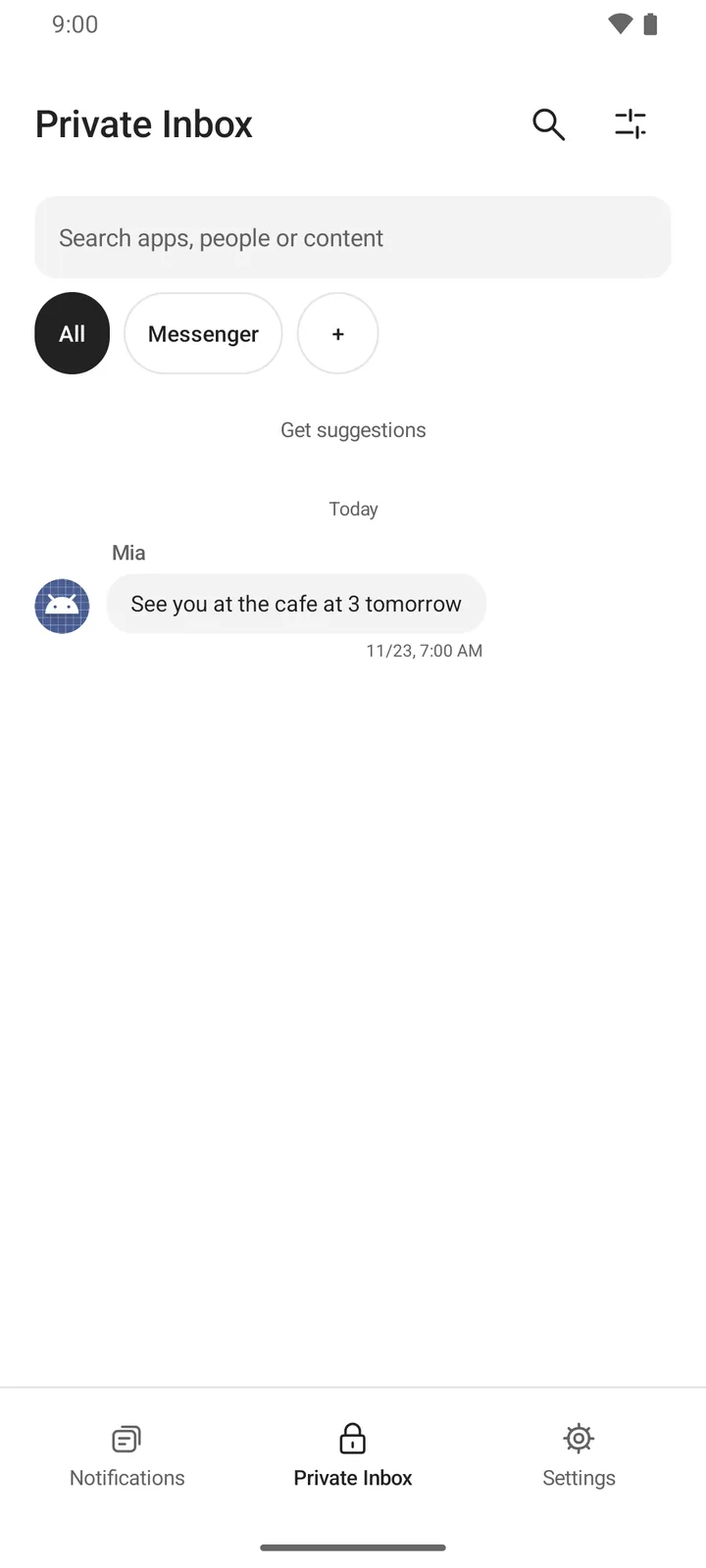
Saved messages appear in the Private Inbox tab like a conversation.
The free version runs up to 3 auto-save rules in total (person, app, keyword); moving one message at a time is not limited. Lifetime Premium has unlimited rules, and free users can watch an ad to try view style, order and folders for 24 hours.
11
Auto-clear
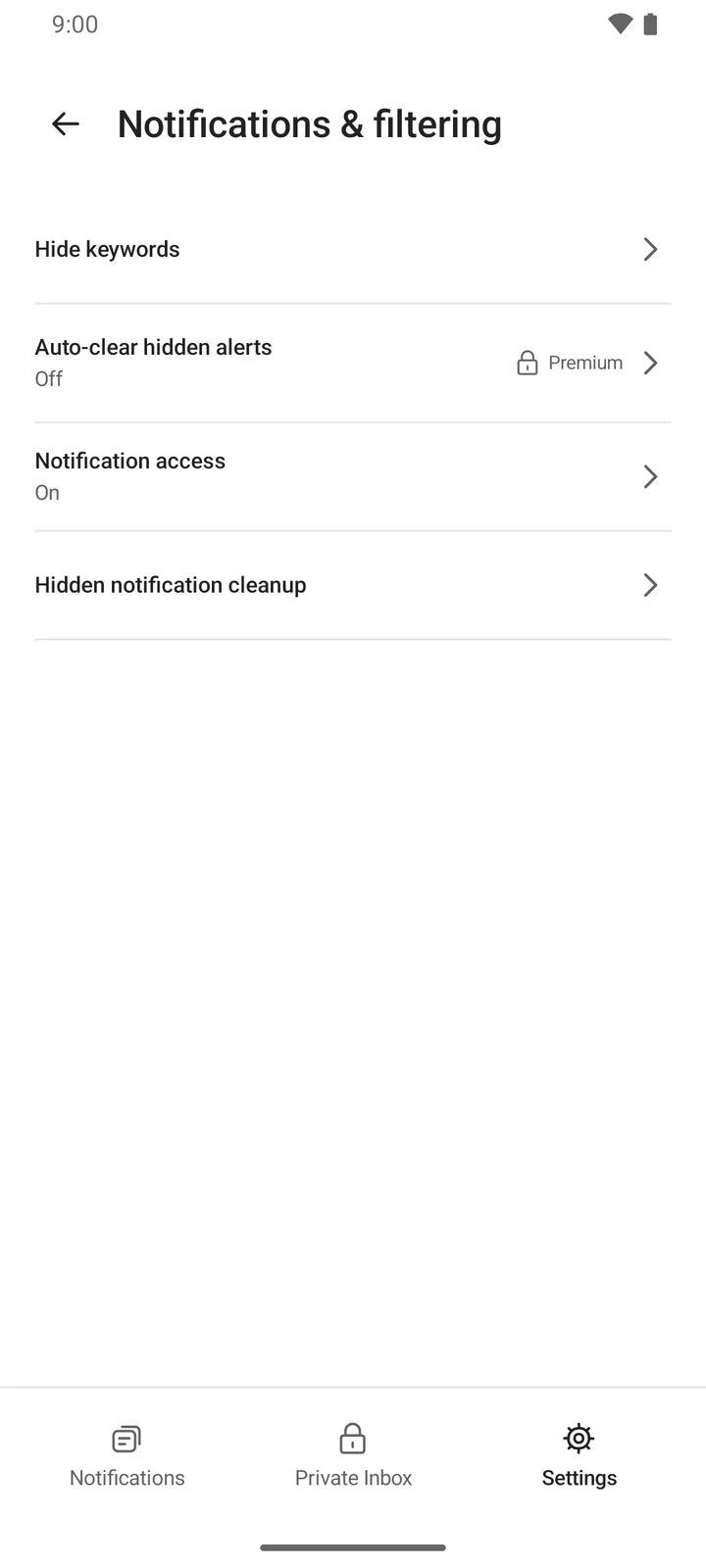
Notifications & filtering holds hide keywords, auto-clear, notification access and cleanup reminders.
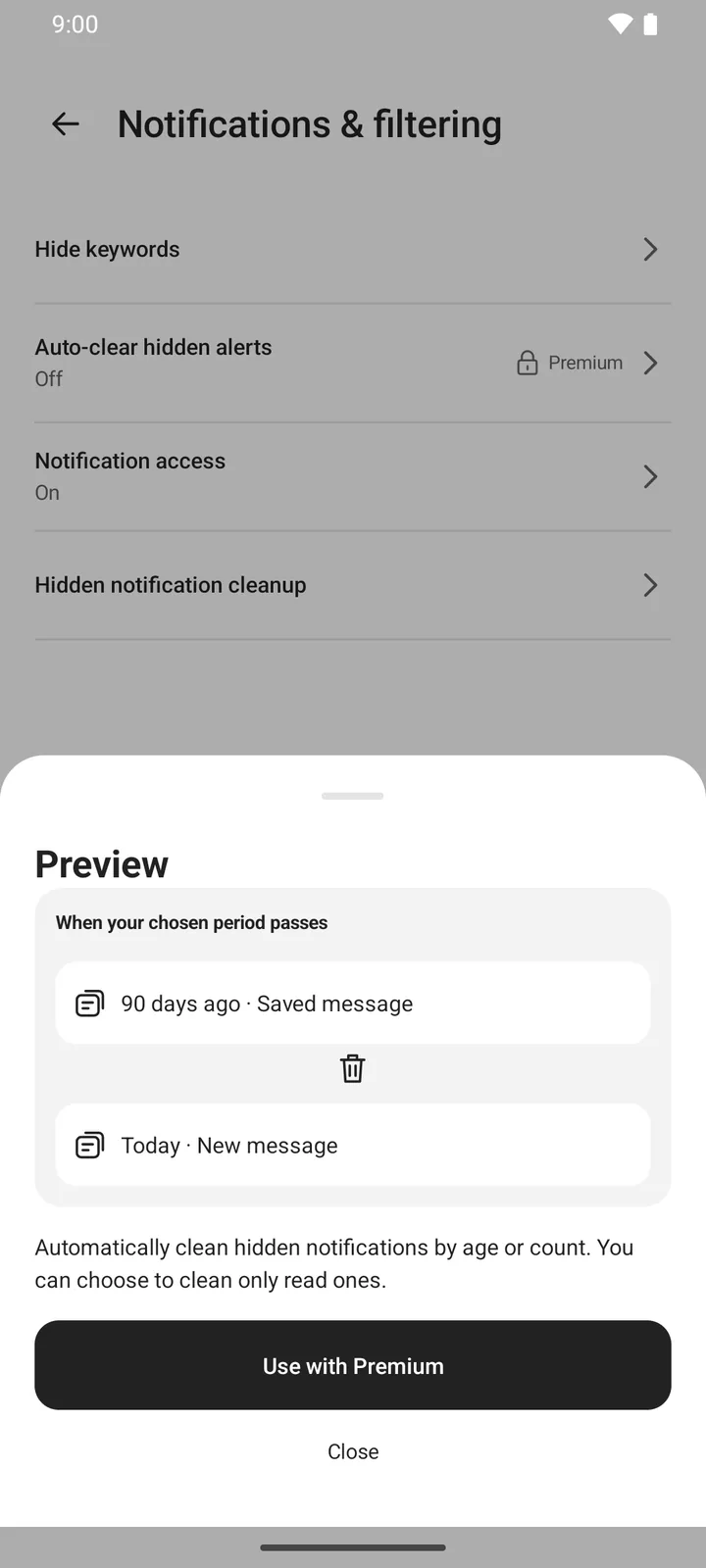
Auto-clear removes hidden notifications by age or count. It is a Premium feature; free users see this preview.
12
Lifetime Premium
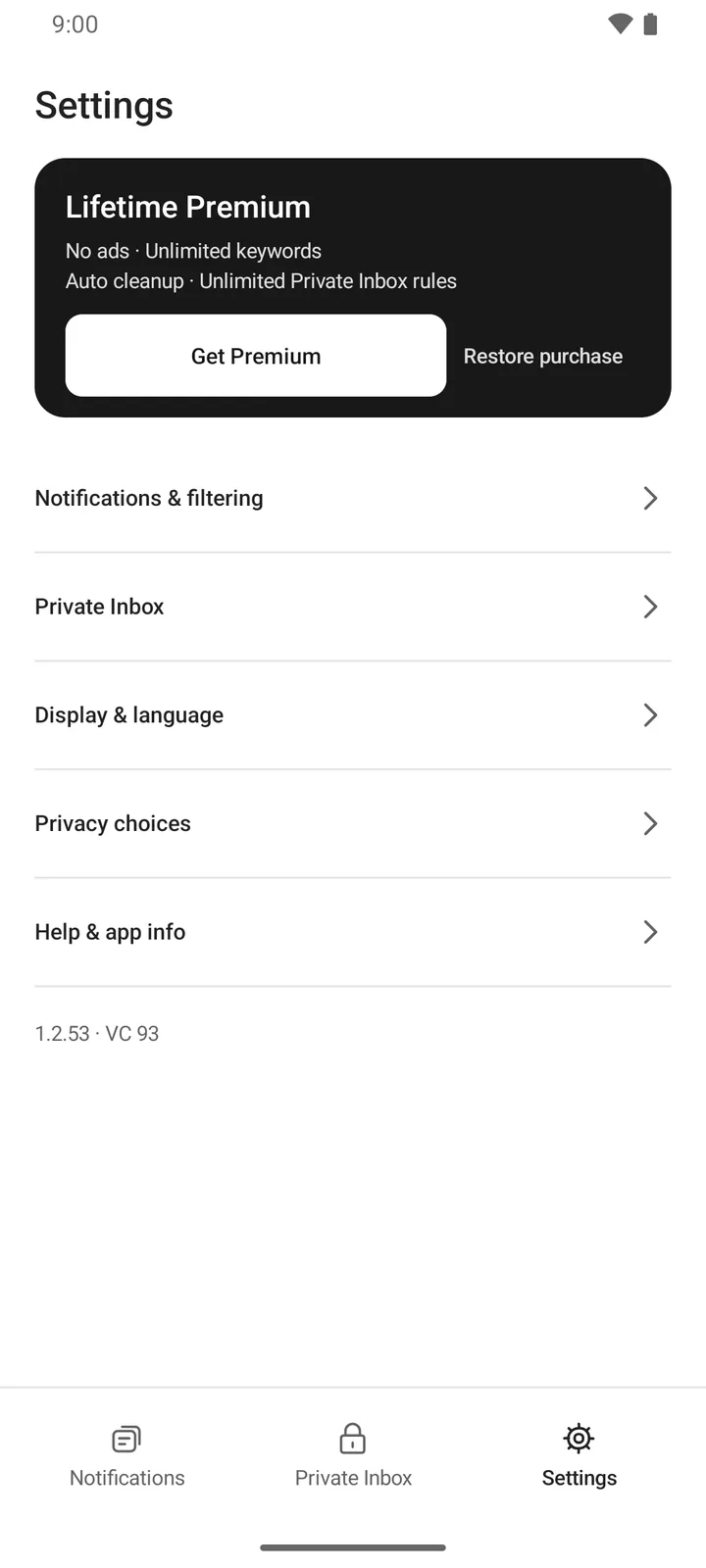
Buy Lifetime Premium once, or restore a purchase, from the top of Settings (Korea ₩5,500 · US $3.99; other regions see the Google Play checkout price).
Benefits: One payment: no ads · unlimited custom keywords · unlimited Private Inbox auto-save rules · auto-clear for hidden notifications (by age or count) · Private Inbox view style and order · more Private Inbox folders · Private Inbox trash (restore for 7 days) · auto-clear old Private Inbox messages (30 days, 90 days or a year). Not a subscription.
Ads in the free version: You may see a banner at the bottom, one ad inside the Hidden list when it has 7 or more notifications, and a full-screen ad after saving keywords or clearing all hidden notifications. Full-screen ads are spaced between actions and limited to 3 a day in total. If you like, watch an ad to try Private Inbox view style, order and folders for 24 hours. Ads are requested as non-personalised ads only, and Lifetime Premium shows no ads. Change ad settings in Settings › Privacy choices.
13
Settings
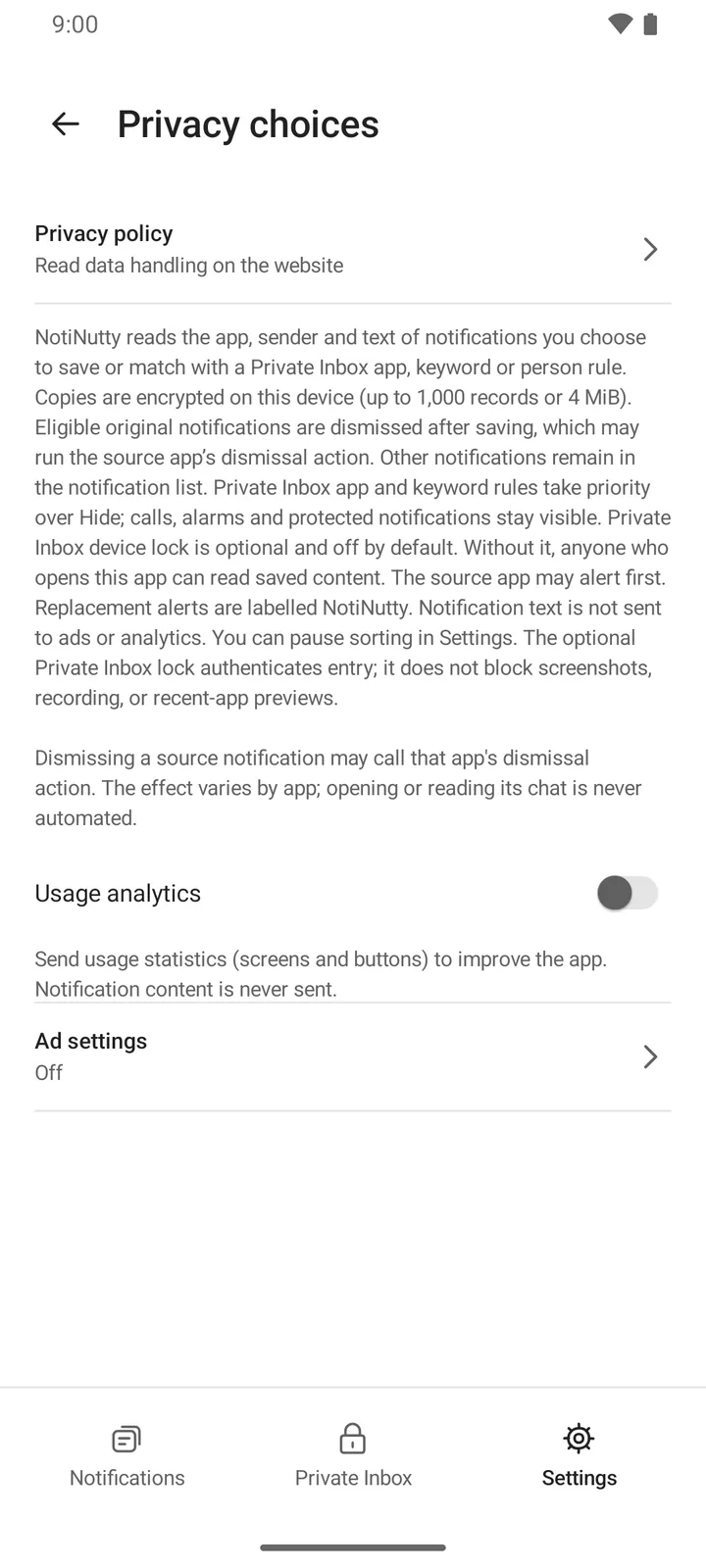
Privacy choices lets you change usage analytics and ad settings anytime.
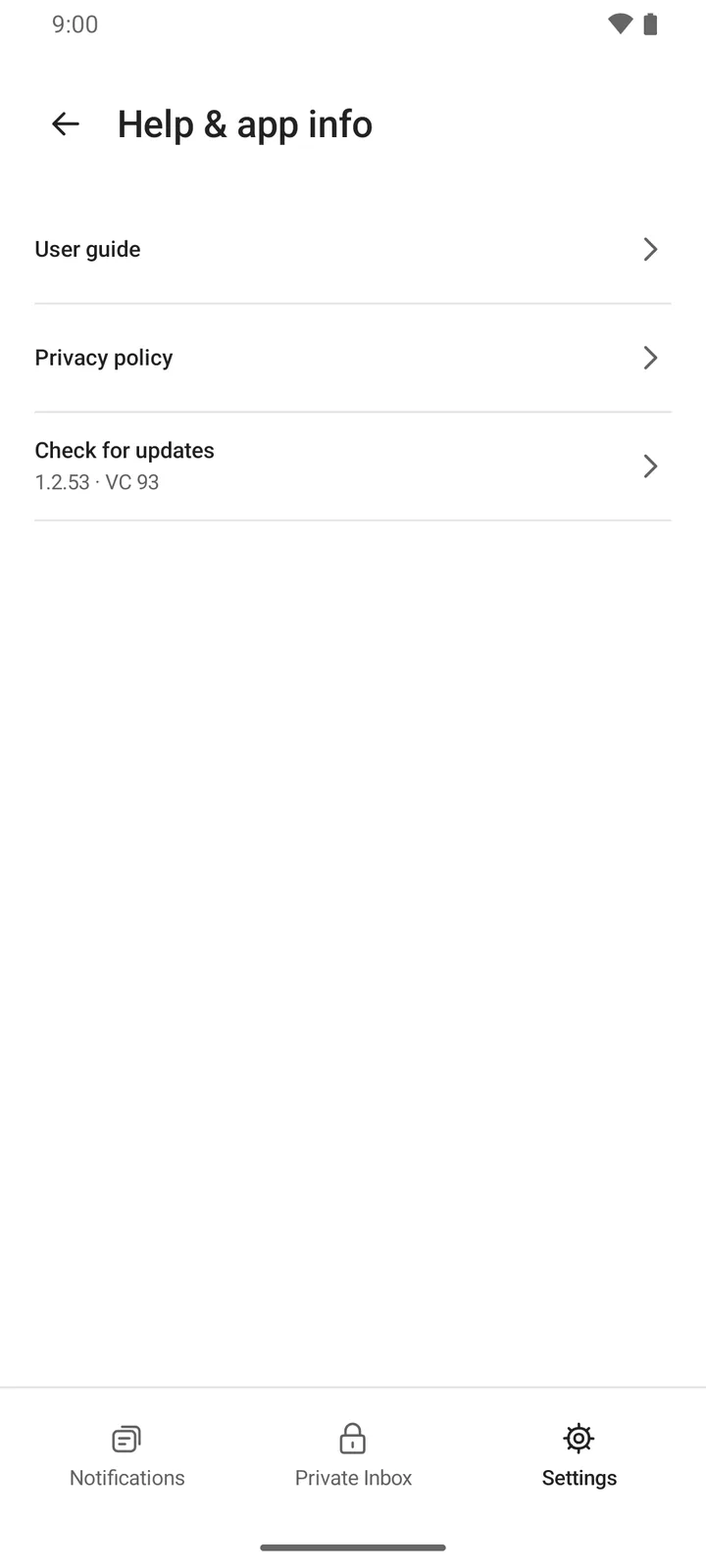
Help & app info has the user guide, update check and app version.
NotiNutty runs on Android 8.0 or later and supports 13 languages: English · 한국어 · 日本語 · 简体中文 · 繁體中文(台灣) · 繁體中文(香港) · Español(España) · Español(Latinoamérica) · Bahasa Indonesia · Bahasa Melayu · ไทย · Tiếng Việt · Filipino.
14
Updates

When a new version is available, a banner appears at the top. Tap Update to download it through Google Play, then restart to install. Updates are never forced.
Banner cropped from a test-build screen.

You can also check from Update check in Help & app info.
Banner cropped from a test-build screen.